
To add a new room to the pool you need to complete the following steps:
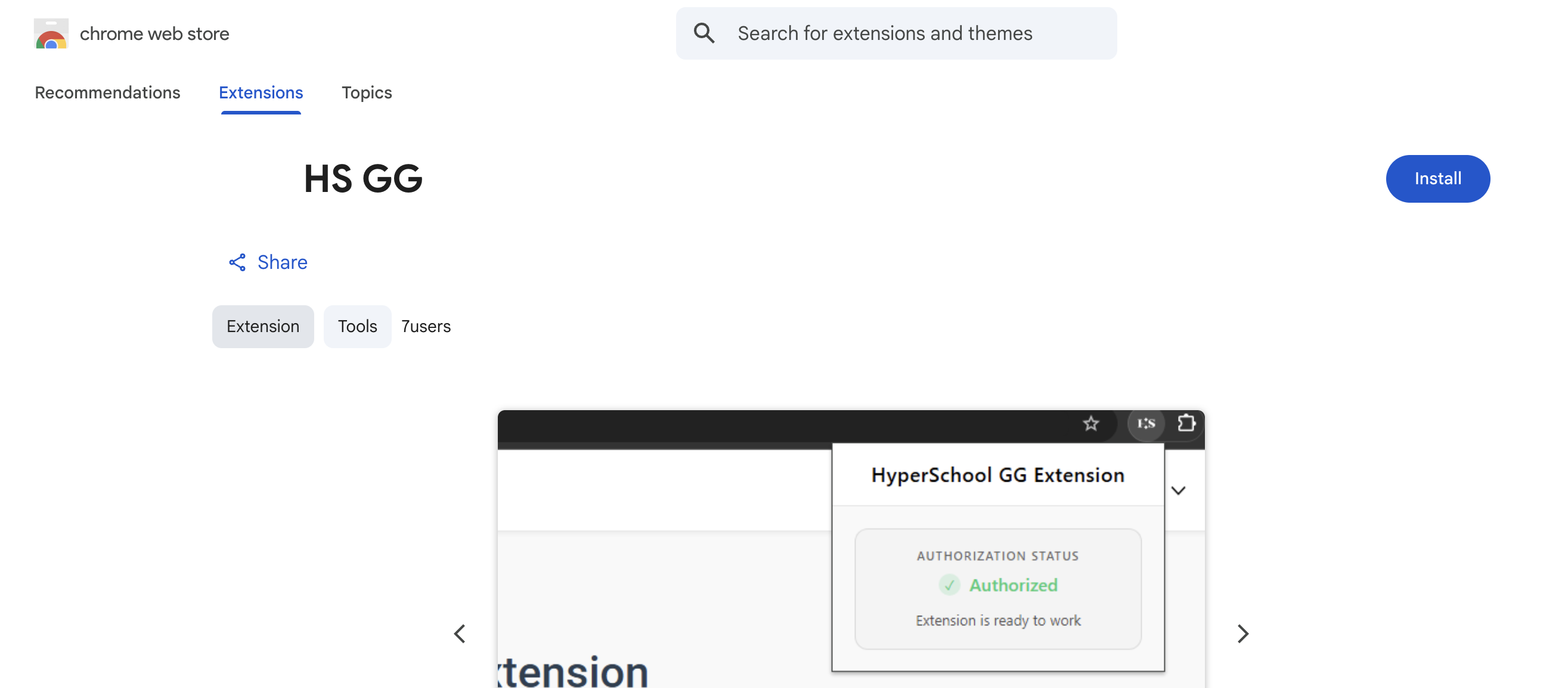
1) you need to install the extension: open the Google Chrome browser and download the extension from the Chrome Web Store.
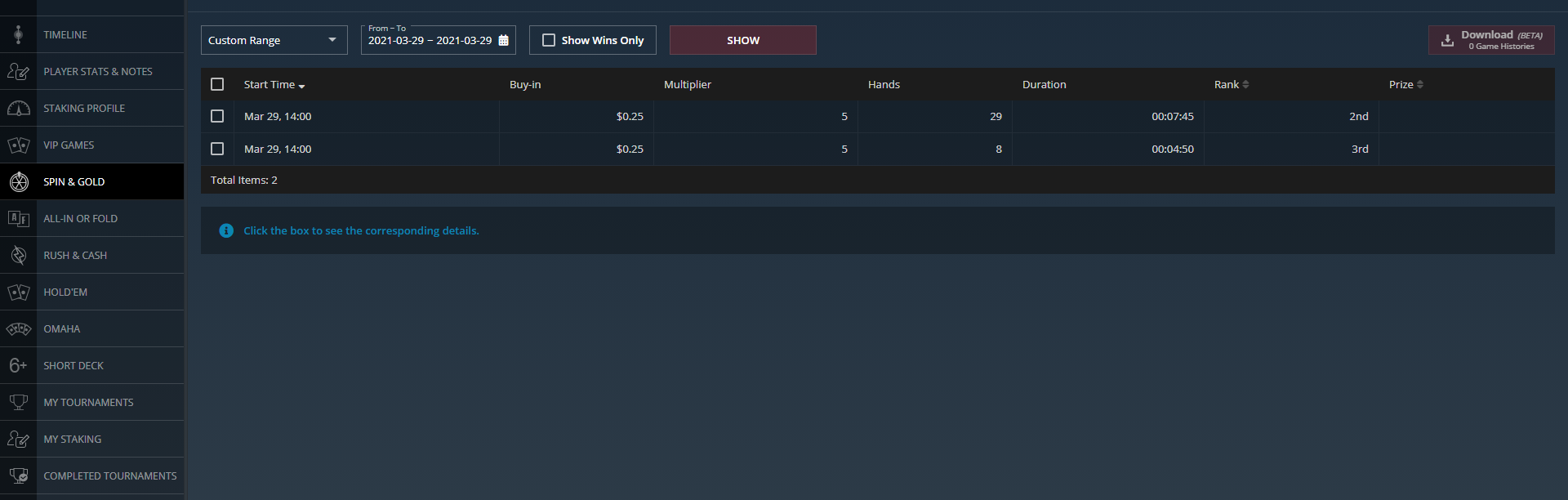
2) Open the GG client, log in, and go to PokerCraft.
3) After the page is fully loaded, the extension status will change to Authorized. This means the extension has successfully passed all checks and is working properly.
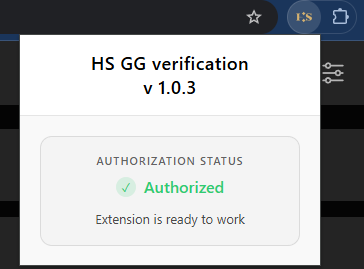
Other extension statuses
- Server Unavailable
Internet connection issues. Please reconnect your internet and refresh the page. - Tab Not Found
The my.pokercraft.com tab is not open. Open the GG client, log in and go to PokerCraft. - User Not Identified
The extension could not identify the logged-in user, or the API key has expired. Refresh the my.pokercraft.com page or open PokerCraft again from the GG client.
4) go to your personal account in the Rooms section
5) click + Add a room and select GG
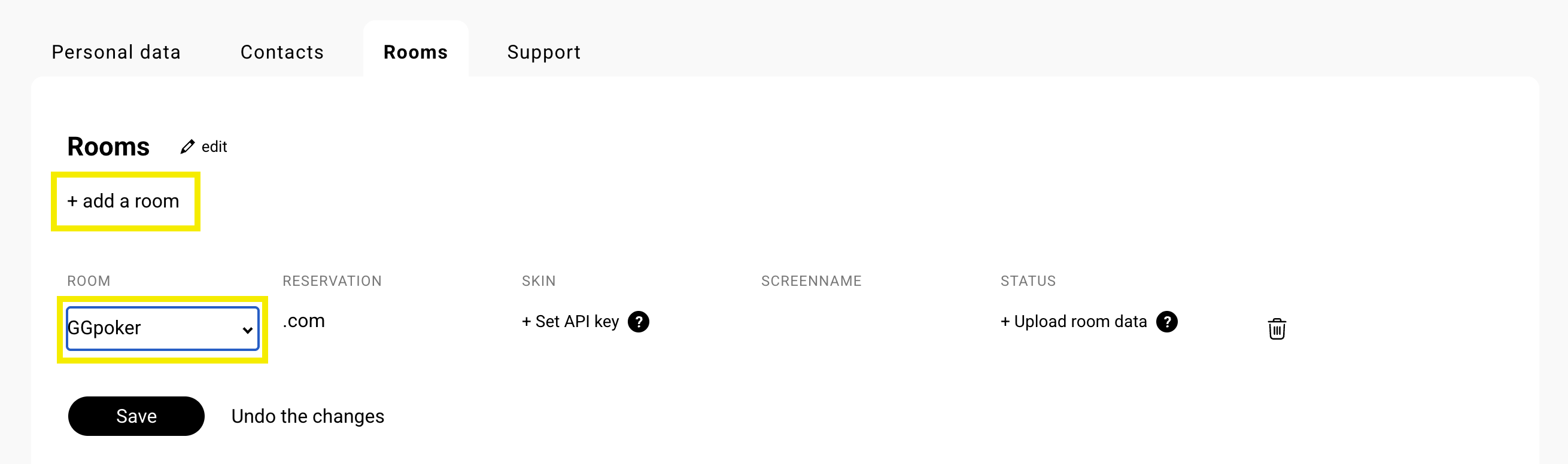
6) after it click + Set API key
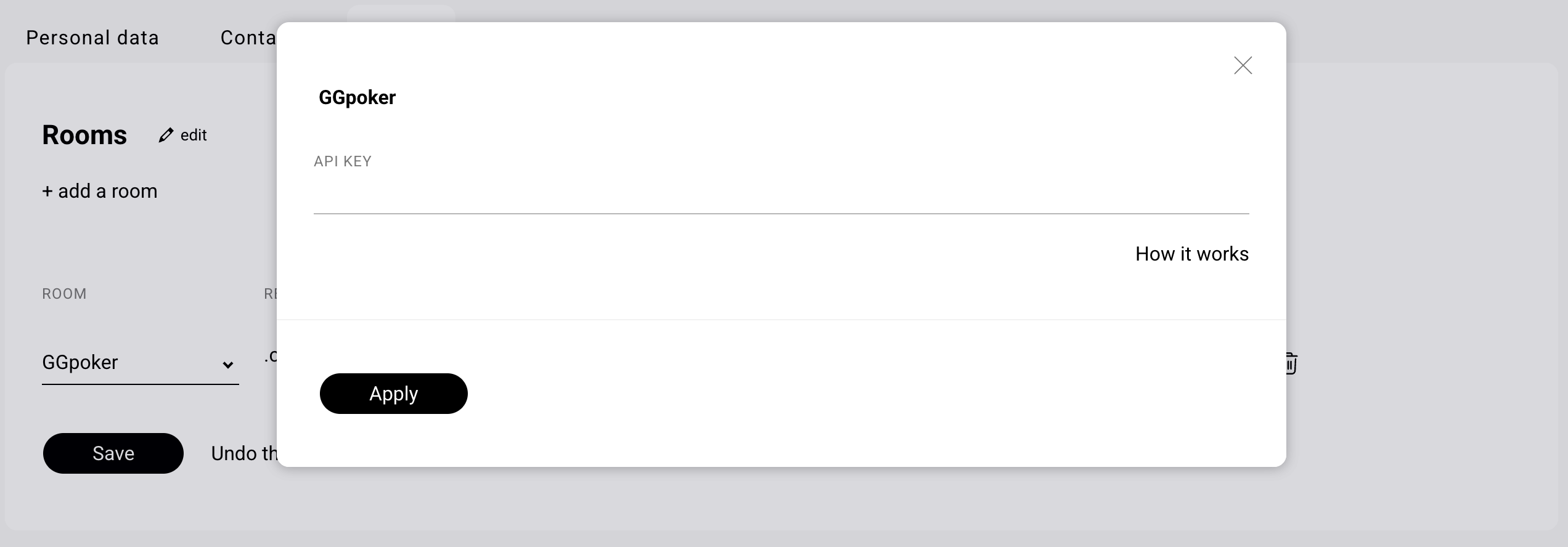
7) Go back to PokerCraft and press F12 to open the Developer Tools. In the Developer Tools, open the Network tab and after it the Headers sub-tab.
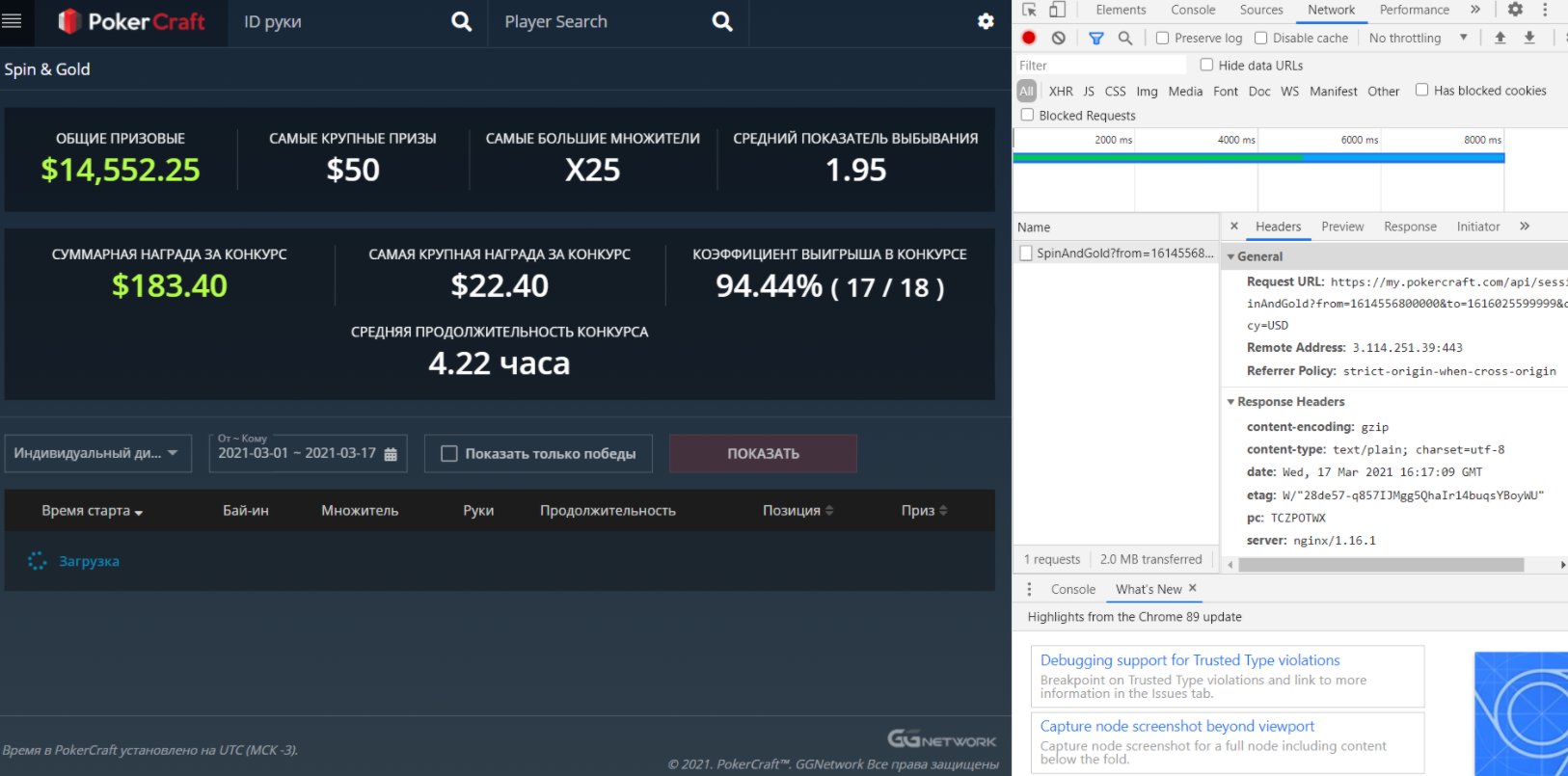
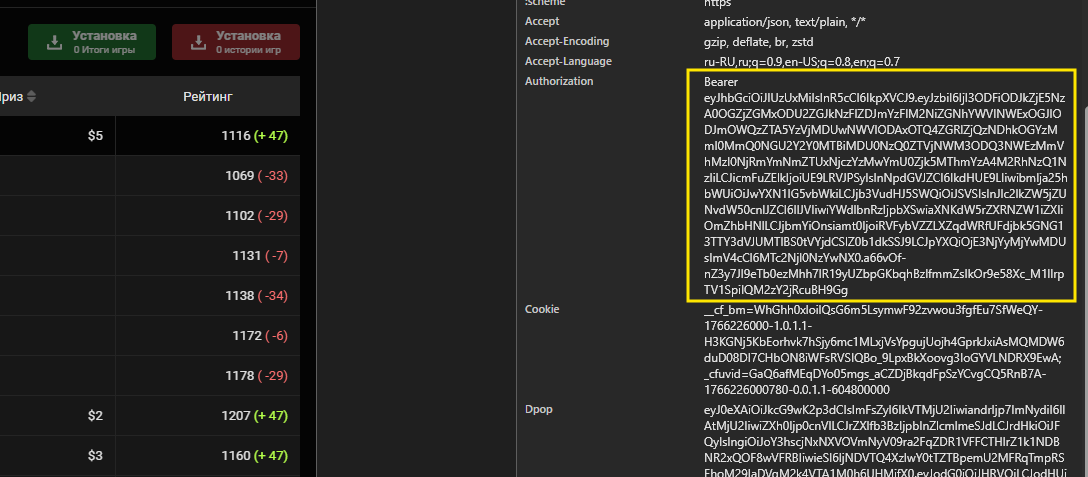
8) In PokerCraft, go to the Spin & Gold page (or simply refresh the page). In the Developer Tools, in the Name column, click on “SpinAndGold?from=…”, find the authorization line, and copy it starting from Bearer.
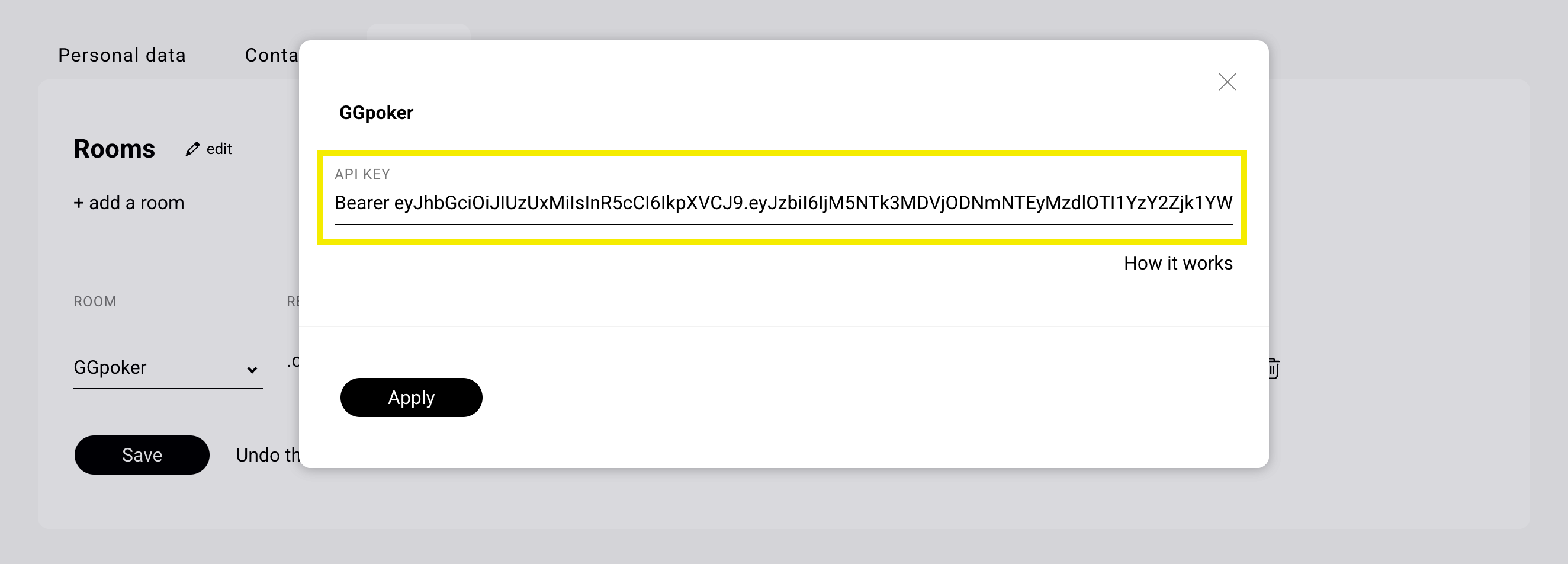
9) Return to the personal account and paste the authorization code into the API key field. Click Apply.
10) Click + Upload room data and attach a screenshot from the room’s personal page, where your personal data and screenname are indicated. Click Save.
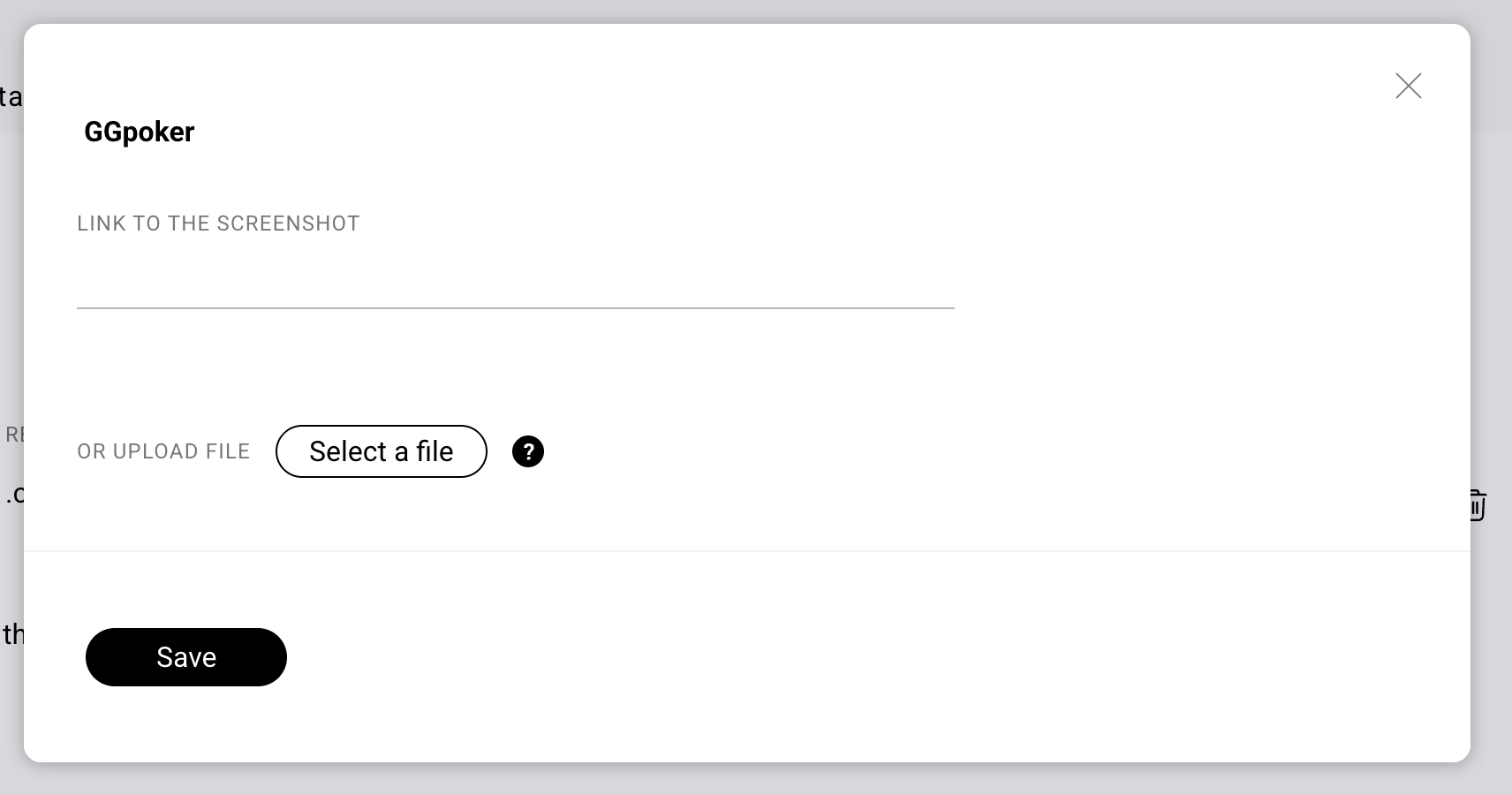
11) Click Save.
It's done. After checking your data, you will receive a notification on your email and the status will change from “Checking” to “Confirmed”. After this, you can add the stakes on the "Stakes" tab. You can find detailed instructions about adding stakes in this article.